
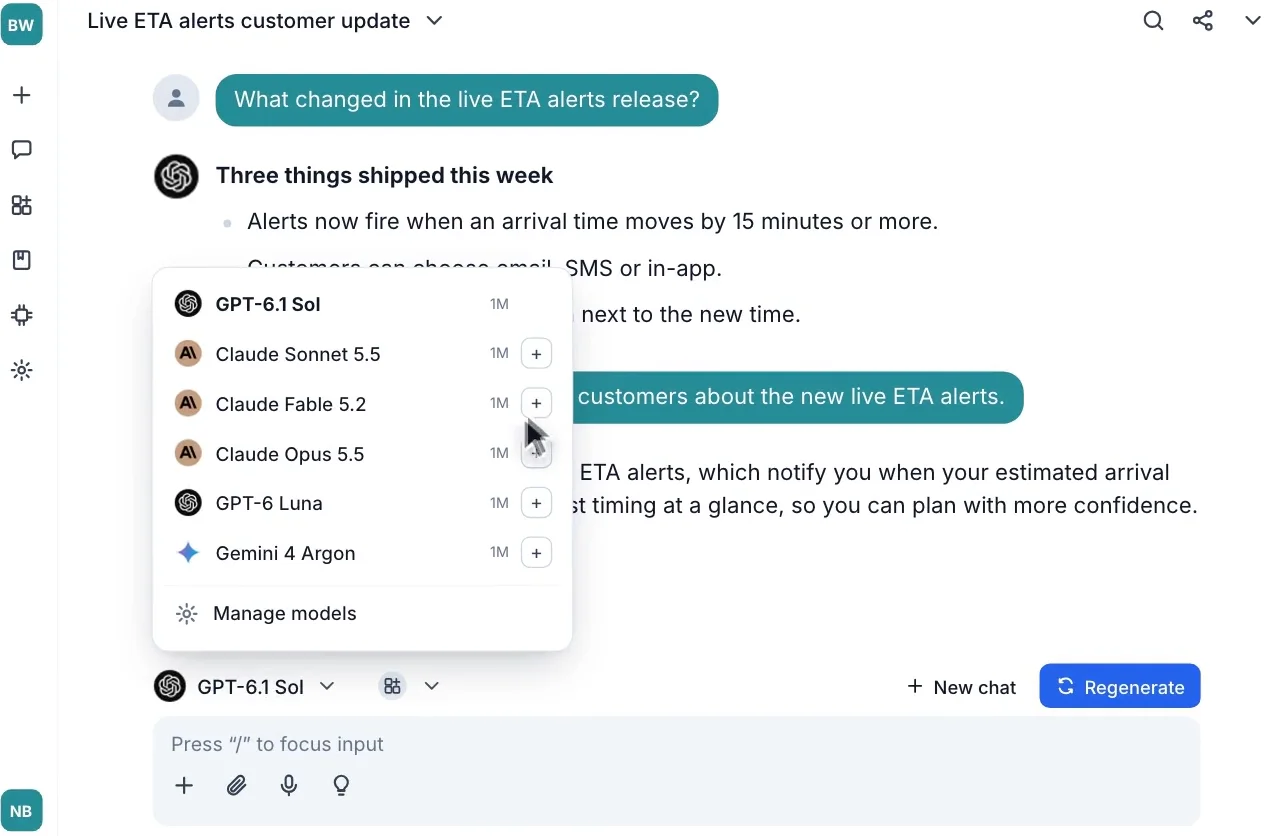
Chances are your team already uses ChatGPT at work, just on personal accounts. MIT's 2025 State of AI in Business report found that only 40% of the companies it studied had bought an official AI subscription, yet employees at more than 90% of them regularly used personal AI tools for work.
A company ChatGPT brings that in-house. Staff sign in with their work account through single sign-on (SSO), every request runs on your company's API keys, and IT can see who's using what and set limits. TypingMind Teams does all of this from one admin panel, on our cloud or on your own servers.
Below are the six steps to set it up.
Step 1: Decide where it runs
Both options give you the same app and the same admin panel. The real difference is who looks after the server.
| Hosted by TypingMind | On your own servers | |
|---|---|---|
| What you need | An account | Your own server, and someone in IT to look after it |
| Price (Nov 2026) | From $99/month for 5 seats. SSO is on Professional, $299/month | Yearly contract from $18,000 |
| Free trial | 14 days | No |
| Updates | We roll them out | Your IT team installs them |
Step 2: Connect your identity provider
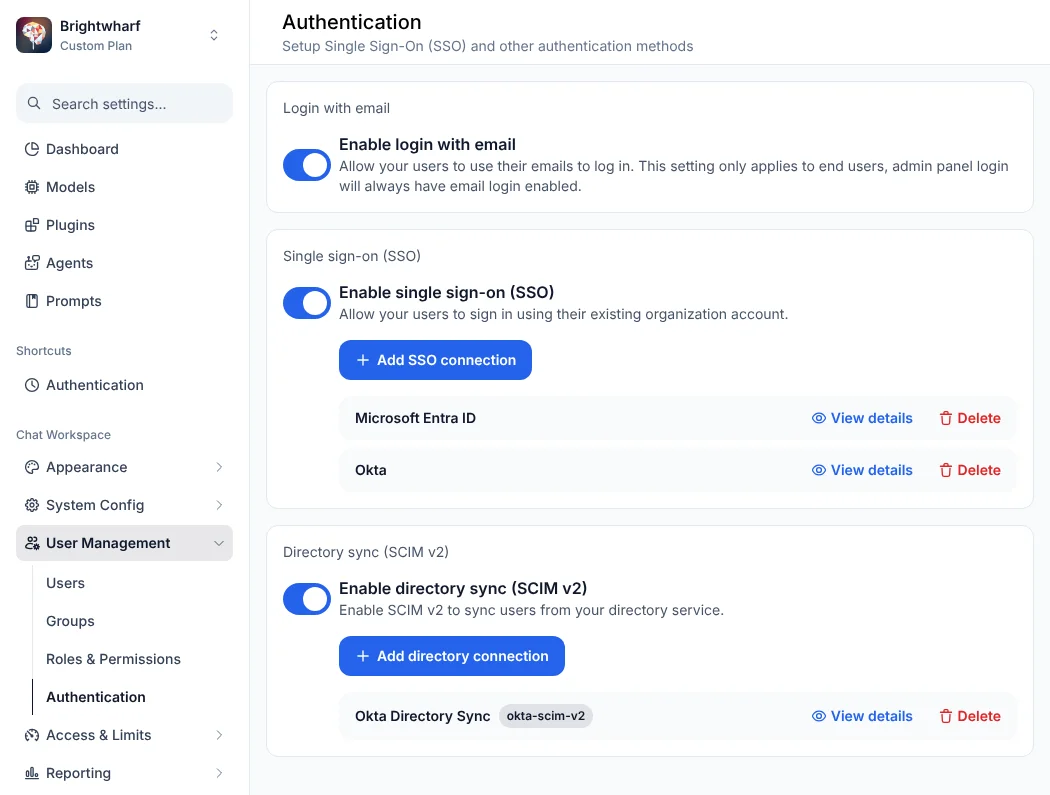
In the admin panel, open Authentication, turn on single sign-on and click Add SSO connection. For a SAML provider like Okta or Entra ID, TypingMind Teams shows an Entity ID and a Reply (ACS) URL. Enter both when you create the app in your identity provider, then paste the provider's metadata XML back into TypingMind Teams to finish. In the screenshot below, two are connected: Microsoft Entra ID and Okta.
It works with Okta, Microsoft Entra ID, AD FS, Google, JumpCloud, OneLogin, PingOne, Auth0, Rippling and other standard identity providers.
Then turn on Directory sync and click Add directory connection. TypingMind Teams shows a SCIM URL and a secret. Copy the secret right away, because it's only shown once. Add both to your identity provider's provisioning settings and turn provisioning on there. From then on, when someone joins or leaves in your identity provider, their TypingMind account follows. Nobody has to remember to remove a leaver by hand.
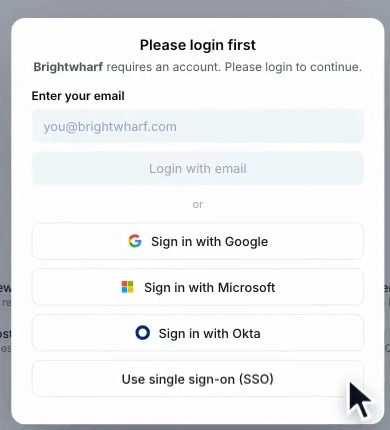
Your staff now get a button for your provider on the login page. No new password to set up.
Step 3: Add your API keys
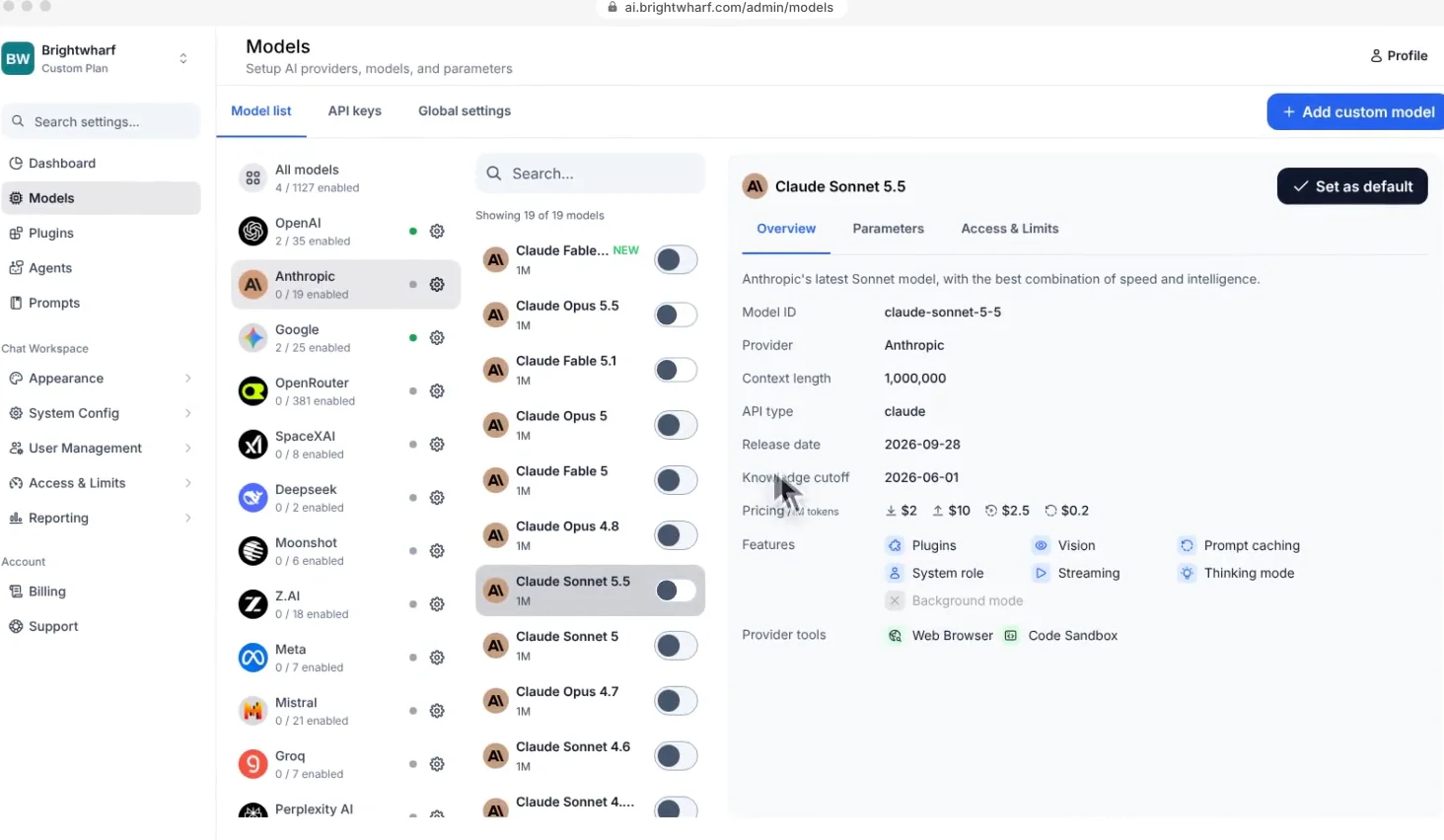
Go to Models, open the API keys tab and paste in your keys for OpenAI, Anthropic, Google or any other provider you use. Models you run on Azure OpenAI, AWS Bedrock or Vertex AI go in as custom models. Then, in the Model list tab, switch on the ones you want people to have.
The keys stay on the server, and staff never see them. They just pick a model from the list. Each provider bills you directly for what your team uses.
“The main drivers for choosing TypingMind were the flexible cost (only actual API usage needed to be paid) as well as the data and messages sent via API not being used for model training by OpenAI.”

Step 4: Choose who sees which model
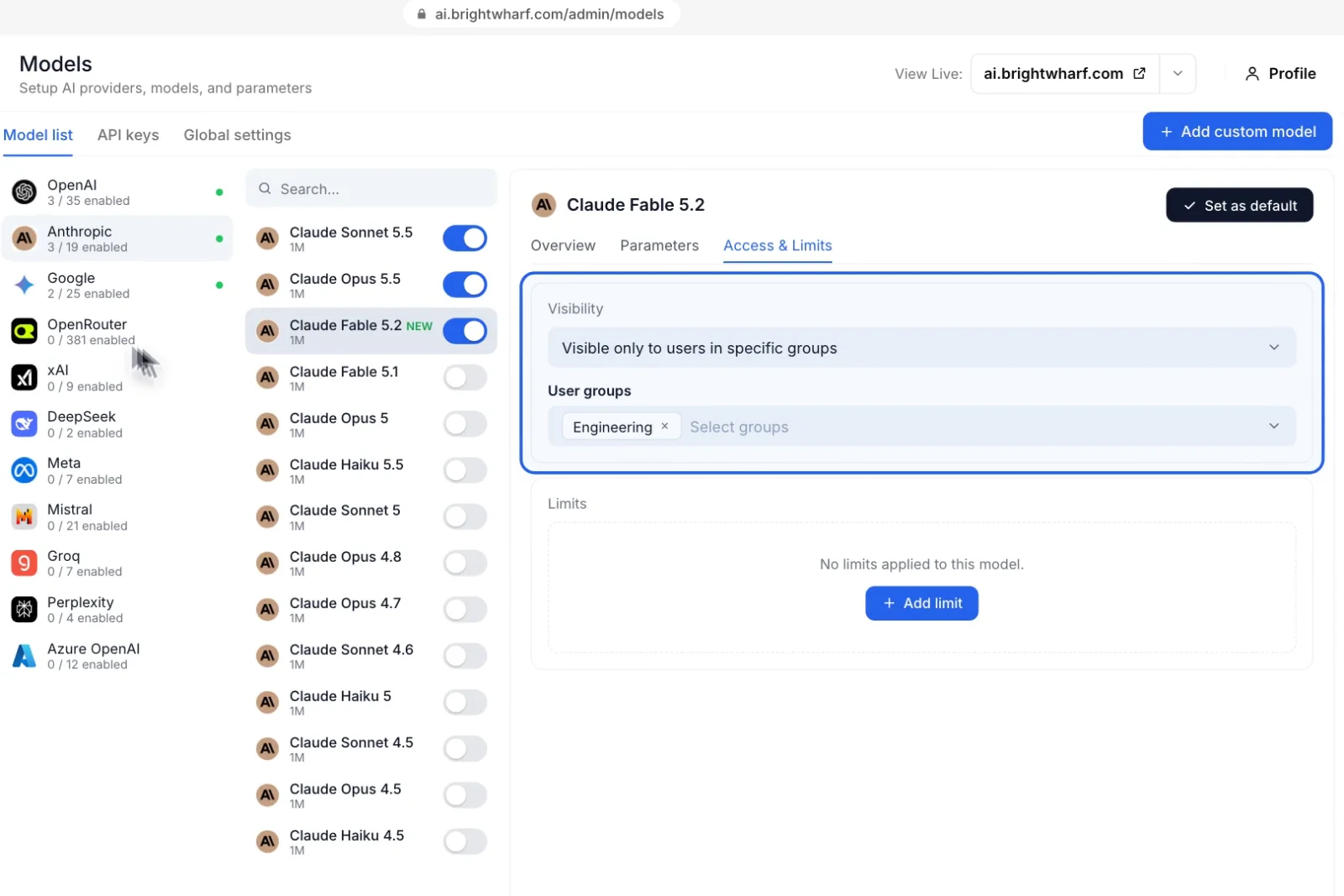
Not every model needs to be open to everyone. Open a model, go to Access & Limits, and pick the groups that can use it. In this example, Claude Fable 5.2 is only visible to Engineering.
Step 5: Set usage limits
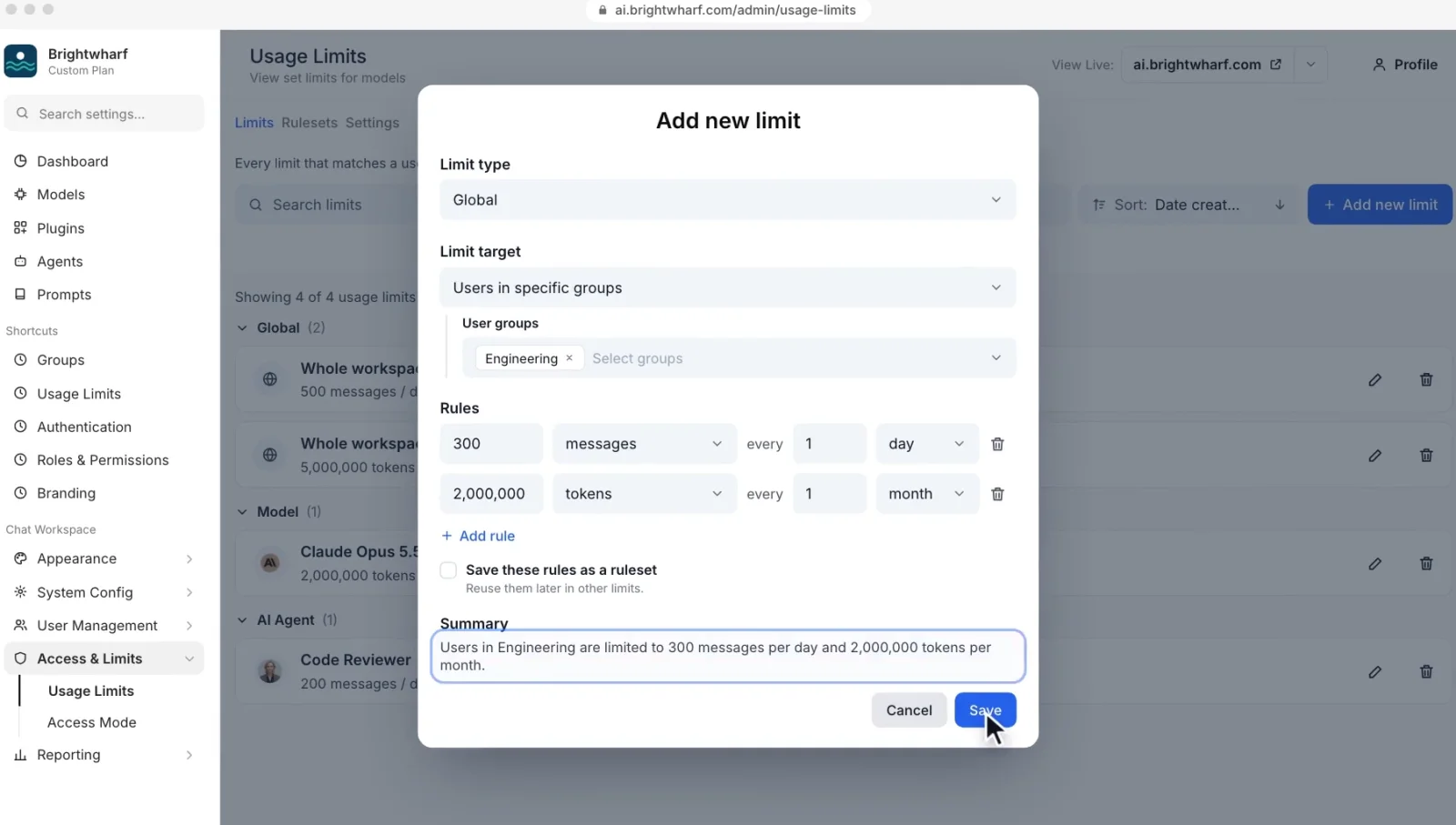
Usage Limits lets you add rules for a model, an agent, a user or a group. This one gives Engineering 300 messages a day and 2,000,000 tokens a month, so one busy week can't blow up the API bill.
Step 6: Keep an eye on usage
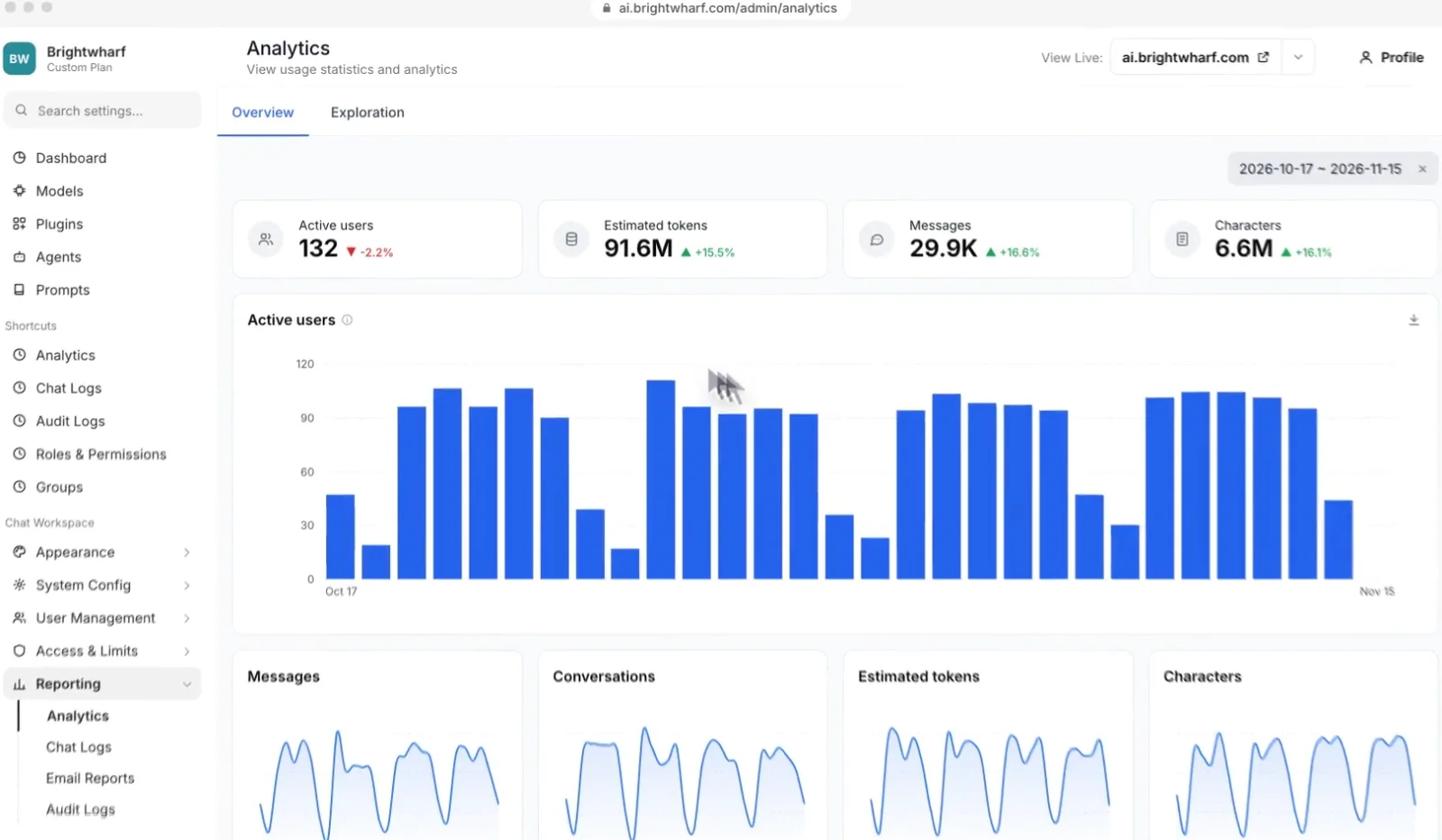
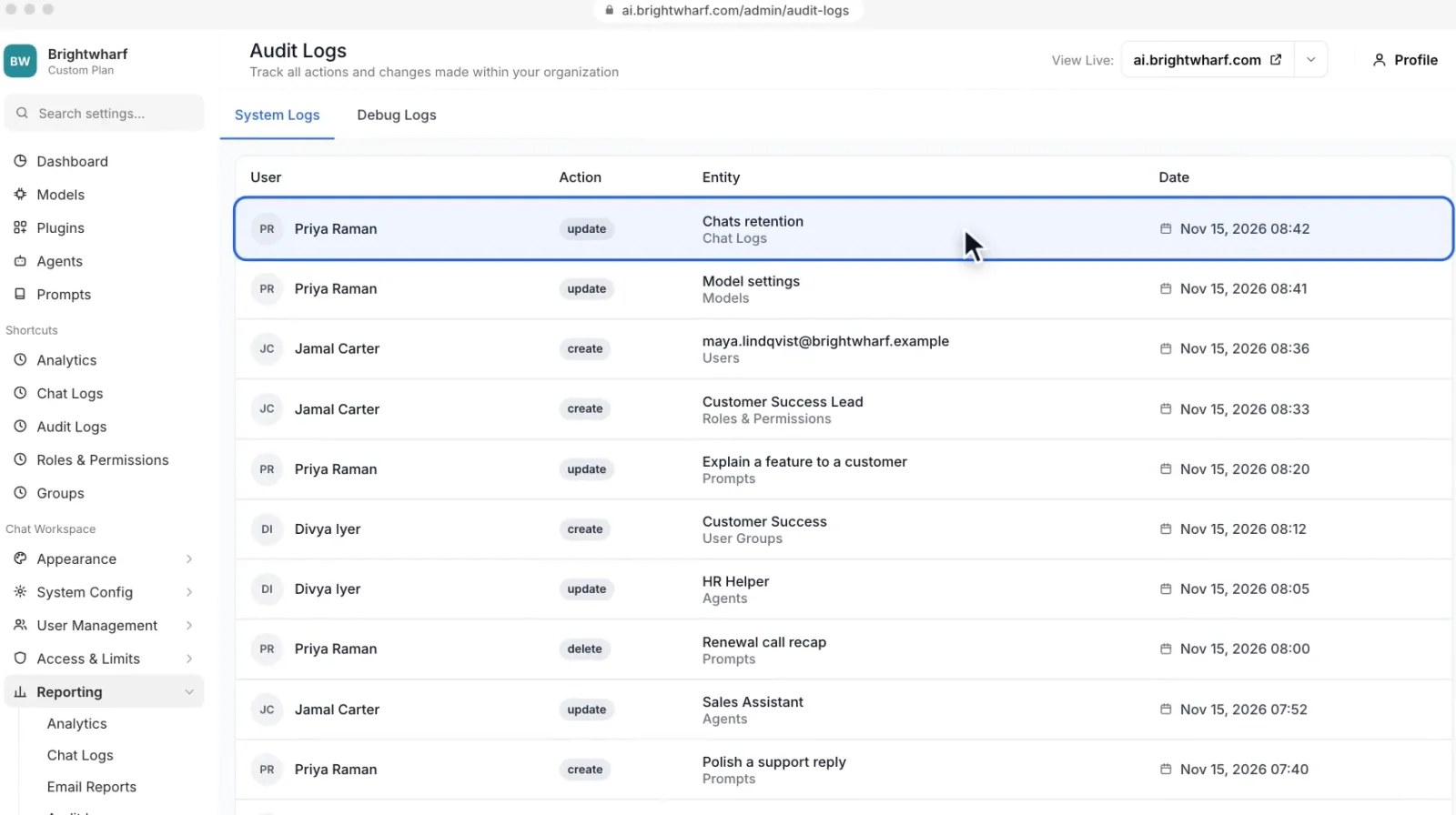
Analytics shows active users, messages and estimated tokens day by day. Audit Logs keeps a record of every change in the admin panel, with who made it and when. It's the first place to look when finance asks about spend or security asks who changed a setting.
Running it on your own servers
If you'd rather keep everything on your own infrastructure, start by talking to us about a self-hosting license. It's a yearly contract starting at $18,000, with no free trial. Then your IT team installs TypingMind Teams on your company's servers, and our install guide walks them through it.
Once it's running, you open it in a browser and fill in a short setup screen with your admin details, company name, tagline and logo.
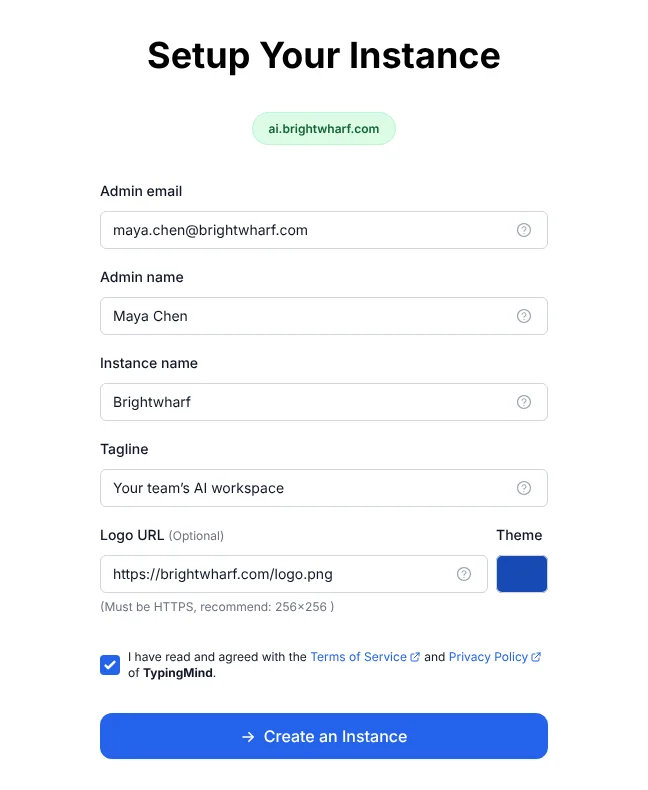
After that you're in the same admin panel as the hosted version, and Steps 2 to 6 work the same way.
How does it compare to LibreChat, Open WebUI and LiteLLM?
These three come up a lot when teams look at self-hosting. Here's where each one stood in November 2026.
- LibreChat is free and open source, and ClickHouse bought it in November 2025. It has SSO, but you set it up in config files instead of an admin panel, and usage limits are a token balance set in those same files.
- Open WebUI is free to self-host and a good fit if you mostly run local models. There are no built-in usage limits per user or group, and once you pass 50 users you have to keep the Open WebUI branding unless you buy an Enterprise license.
- LiteLLM manages API keys and budgets, but it isn't a full chat app. SSO is free for up to 5 users, and Directory Sync and audit logs are Enterprise only. If you already use it, you can keep it and connect it to TypingMind Teams.
Which one to pick: TypingMind Teams if you want SSO, your own API keys and an admin panel without config files, hosted by us or self-hosted on your own servers. LibreChat or Open WebUI if you want free, open-source code and have an engineer to run it. LiteLLM if you need one gateway for keys and budgets, next to a chat app.
For more detail, see TypingMind Teams vs LibreChat and Open WebUI alternatives.
Frequently Asked Questions
Can staff see our API keys?
No. The keys stay on the server, and staff only pick from the models you've switched on.
Which plan includes SSO?
Professional, at $299/month for the hosted version. Self-hosting starts at $18,000 a year.
Which identity providers work?
Okta, Microsoft Entra ID, AD FS, Google, JumpCloud, OneLogin, PingOne, Auth0, Rippling, and any other provider that supports SAML or OpenID Connect.
Can we use Azure OpenAI or AWS Bedrock?
Yes. Add them as custom models, next to your other providers.
Do we need an engineer?
Not for the hosted version. To self-host, you'll want someone in IT who's comfortable looking after a server.
Build a unified AI workspace for your team
- Access all AI models in one place
- Manage usage, costs & permissions per team
- Connect your own API keys
- ...and much more